Lock Picking 101
Lockpicking, Locksmithing, Locksport, Locks and Picks
           

Lock Picking 101
Login
Profile
FAQ
Members
Search
Lock Pick Shop


Information
FAQ & General Information
Locksmith Business
Pick-Fu - Do... Not try.
Got Questions?
General Chatter
Lockpicking 101 Lapel Pin


Hardware
Automatic/Mechanical
Lockpicks - Manual
Locks
Eu Locks, Picks & Hardware
Buy - Sell - Trade


Advanced Locks
Advanced Locks Information
Combo, Electronic & Safes
Automotive Locks and Picks
High Security Locks
Advanced Lock Pick Tools


Locksport Groups
Locksport Local
Chapter President's Office
Locksport Board Room

Featured Picks
Locksmiths
Locksmiths Forum
 

A brief guide to taking digital pictures.

THE starting place for newcomers. FAQ's, valuable information like product reviews, links to lockpicking related sites, lockpick tool vendors, and more. START HERE.

Moderators: digital_blue, zeke79

A brief guide to taking digital pictures.

Postby digital_blue » Fri Nov 18, 2005 1:52 am

This is not meant to be an exhaustive tutorial, because I suspect if it were, the people who should read it wouldn't. ;) But I wanted to offer a couple pointers to taking decent digital pictures, as I see countless examples of people posting pictures here that are so poor that they offer very little help or explanation at all. If you can get just two important elements right, you'll have much better pictures and possibly get better answers to your questions.


AVOIDING BLURRY PICTURES

First and probably most important is understanding focal length. Most cameras auto focus. If you take a digital photo of a lock or tool and it is blurry, the most common reason is that you have tried to take the picture from too close. You camera has a range, called the focal length, in which you can take a clear photo. If you are too close, your camera will not focus adequately and your picture will be blurry. To correct this, move the camera back and retake the photo.

If you've backed off the camera and got a clear picture, the item of interest will be smaller in the frame than you had intended. This is ok. Using your cameras software, crop out the item. Even a 1.0MP digital camera is sufficient to allow you to take a picture of a lock (say, the keyway) and crop out just the portion you want and enlarge.

For example:

Image
Image

If I had tried to get close enough to frame it as in the second photo it would have been too blurry, so I moved the camera back to take the picture from farther away and cropped out the stuff I didn't need after.

DEALING WITH BAD LIGHTING:

Lighting is probably the second most important element. Whenever possible, try and get a strong source of indirect light. In the above photos, I actually pointed a 15 million candle power lamp at my ceiling above the lock so that the reflected light would be more diffused and would not cast harsh shadows or awful glares.

Sometimes, however, getting good lighting to the subject is not easy. In these cases, there are some "post production" things that can be done. (Post production is a fancy industry term for muckin' with the picture on your computer. ;) )

Many photo editing suites will allow you to do something much like the following, but for my example, I will use Adobe Photoshop. If you have a photo with poor lighting conditions, open it up in Photoshop, and under the file menu, select Image/Adustment/Levels. You'll get a box that looks like the following:
Image
Note the red arrows. These are what you will adjust. Slide the left and right points inward until they are roughly under where the black starts, then slide the middle point around while you watch the picture to find the ideal (or as close as you can come) lighting conditions. You'll end up with something that looks like this:
Image
And your picture will go from this:
Image
To:
Image

SUMMARY:

That's it. These two simple elements, focus and lighting, will make a world of difference in your photographs. I know that for some this information is very basic. I've avoided using technical terms. I do hope this is useful to some of you. Now when I see blurry pictures, you know where I'll be directing you. ;)

Cheers!

db
Image
digital_blue
Site Admin
 
Posts: 10128
Joined: Fri Jan 07, 2005 4:16 am
Location: Manitoba

Postby digital_blue » Fri Nov 18, 2005 2:00 am

P.S. Feel free to add any information you like. Afterward, I will move this to the FAQ section.

db
Image
digital_blue
Site Admin
 
Posts: 10128
Joined: Fri Jan 07, 2005 4:16 am
Location: Manitoba

Postby frostbyte » Fri Nov 18, 2005 2:01 am

Photoshop can also Auto correct levels if you don't want to attempt to fool around with the levels yourself, ctrl-shift-L or Image->Adjustments->Auto Levels in Photoshop 8 (CS).

Irfanview (free graphics viewer) can do some basic adjustments via Image->Enhance Colors (If you don't happen to have Photoshop)
This is a block of text that can be added to posts you make. There is a 255 character limit
HTML is OFF
BBCodeis ON
Smilies are ON
frostbyte
 
Posts: 623
Joined: Tue May 04, 2004 11:35 pm
Location: NS Canada

Postby chrometsuba » Fri Nov 18, 2005 2:16 am

Another photoshop technique to play with in the levels is the eye droppers (you can see them above the preview checkbox)

The left one selects the color that will be Black, the right one the color that will be White, and the middle the color that will be Grey (20%? i dont remember which)

So if your lighting is having problems with colors and lighting, you can quickly pick a spot that is black, and one that is white, and it will automaticaly adjust it. The function is similar to the "auto level" which frostbyte mentioned, but a bit more interactive to help correct less then perfect pictures.
chrometsuba
 
Posts: 39
Joined: Tue Oct 25, 2005 5:13 am
Location: Toronto, Ontario

Postby digital_blue » Fri Nov 18, 2005 8:07 am

Both good additions, though it's worth learning to adjust the levels manually, as I have found that Autolevels often produces less than desirable results.

If anybody wants the advanced approach to lighting, look into working with curves. This is the same poorly lit picture with only curves adjusted:

Image

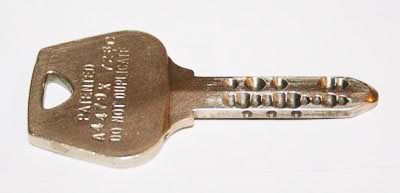
Notice how much more definition there is on the key. Note the visibility of the fine scratches on the bow.

db
Image
digital_blue
Site Admin
 
Posts: 10128
Joined: Fri Jan 07, 2005 4:16 am
Location: Manitoba

Postby Mad Mick » Fri Nov 18, 2005 9:23 am

I think holding the camera steady is equally as important. Standing at a table/desk, whilst hunched over and trying to get correct focus, usually results in slight involuntary movements and can contribute towards blurring.

If the only place available to take a pic with good lighting requires you to lean over, try placing one foot on a chair and resting an elbow on that knee, then rest the other leg against the work-surface edge. Tuck the other elbow into your hip, frame the shot, exhale, press the shutter button halfway to focus, then if satisfied, take the shot.

I dunno if any of the above is technically correct but it sorta works for me. (You could always use a tripod though. :wink: )
Image If it ain't broke.....pull it down and see how it works anyway!
Mad Mick
 
Posts: 2322
Joined: Fri Jan 09, 2004 8:19 am
Location: UK

Postby digital_blue » Fri Nov 18, 2005 9:50 am

That's a good point Mick. In fact, taking a picture from farther away and cropping only works well if the camera is steady to begin with. I never actually thought of it, because I always use a tripod for shooting. But yes, resting your elbow will make a big difference. In fact, it's something that pros will do when a tripod is not possible or practical.

Cheers!

db
Image
digital_blue
Site Admin
 
Posts: 10128
Joined: Fri Jan 07, 2005 4:16 am
Location: Manitoba

Postby Chrispy » Fri Nov 18, 2005 9:51 am

Yay for db! :)


:wink:
Image
Some things may be pick proof, but everything can be bypassed....
Chrispy
 
Posts: 3658
Joined: Fri Mar 25, 2005 4:49 am
Location: GC, QLD

Postby digital_blue » Fri Nov 18, 2005 9:54 am

Chrispy wrote:Yay for db! :)


:wink:


:? :?:

db
Image
digital_blue
Site Admin
 
Posts: 10128
Joined: Fri Jan 07, 2005 4:16 am
Location: Manitoba

Postby Mad Mick » Fri Nov 18, 2005 10:13 am

digital_blue wrote:
Chrispy wrote:Yay for db! :)


:wink:


:? :?:

db

Well db, you did say "Cheers".
I'll have another Heineken, this one's almost finished. *Gulp* Yup, it's finished now. :wink:
Image If it ain't broke.....pull it down and see how it works anyway!
Mad Mick
 
Posts: 2322
Joined: Fri Jan 09, 2004 8:19 am
Location: UK

Postby Chrispy » Fri Nov 18, 2005 11:43 am

I was saying thanks for the tutorial. Now we can actually see some of the pics uploaded these days.

(Yes, I'm guilty myself on a few occasions :oops: )


:P
Image
Some things may be pick proof, but everything can be bypassed....
Chrispy
 
Posts: 3658
Joined: Fri Mar 25, 2005 4:49 am
Location: GC, QLD

Postby Minion » Fri Nov 18, 2005 1:21 pm

One way to have the camera focus (most digital cameras)

Hold the picture taking button half way down for a couple seconds, while it's pointed at your subject, then fully click.
Minion
 
Posts: 476
Joined: Sat Sep 04, 2004 3:55 am
Location: Boise, Idaho

Postby chrometsuba » Fri Nov 18, 2005 2:06 pm

Camera technique tips:

Read your camera manual..... =) just kidding..

well, read it anyways, find out how to use macro mode if it has it available. Most digital cameras do not focus at all in macro mode, but will focust to a preset distance. Find out what it is and how to adjust it, and try to keep your target that distance away from the lens.

If your camera doesn't have macro then zoom is your next best choice since in non-macro mode most cameras cant focus up close to the lens.

since most of the things you will probably take pictures of for this forum are likely to be metalic, disable the flash on your camera. its just going to make a mess of the picture. :lol:

Secret tip for everyone... most autofocus digital cameras focus using the image sensor, sometimes it wont focus if there is no contrast in the center of your image. I've sometimes had to use an aid to focus on some subjects, a peice of paper with a black and white checkerboard makes a great target.


dont mind me, im just rambling...
chrometsuba
 
Posts: 39
Joined: Tue Oct 25, 2005 5:13 am
Location: Toronto, Ontario

Postby devnill » Sat Nov 19, 2005 5:14 am

Good post.

for those have issues aquiring photoshop you can use:

The Gimp:
This is a great photoshop alternative. I has pretty much all the basic tools and filter as photoshop, and is totally free and open source. Also, there are versions for virtually any OS

Picassa: This is a photo management/editing suite that has a "im feeling lucky" button to auto adjust the image. Also, there are many tools to adjust the colors in the photo without graph editing. This is pretty much the best choice IMHO for beginners. Even though i have training in photoshop, i usually use it for color management when doing photo editing.

As another poster mentioned, Irfanview has color adjustment as well.


hope this helps,
devnill
Image
devnill
Supporter
Supporter
 
Posts: 335
Joined: Thu Nov 10, 2005 3:23 pm
Location: New York, USA

did I scan this topic too fast?

Postby raimundo » Sat Nov 19, 2005 11:05 pm

what is that cylinder in the first few photos, and what is that apparent keso key? it has a lot more cuts than any keso I've seen? oh, and good pictures thanks.
raimundo
 
Posts: 7163
Joined: Wed Apr 21, 2004 10:02 pm
Location: Minnneapolis

Next

Return to Lockpicking 101 - FAQs, and General Information

Who is online

Users browsing this forum: No registered users and 1 guest